Make “Windows Explorer” taskbar icon open “My Computer” instead of “Libraries”
Oct 5th, 2010 by morpheus
Edit: This trick also works for Windows 8 & Windows server 2012 !
The default “Windows Explorer” icon on the taskbar in Windows 7 & Windows Server 2008 R2 opens the “Libraries” by default.
Now, I’m not sure about you, but I would much rather it opened up “My Computer” instead.
Fortunately, it’s a very simple change.
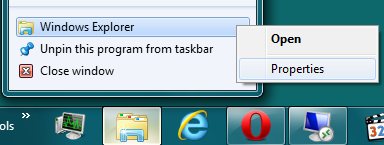
Right click on the “Windows Explorer” icon in the taskbar, now right click “Windows Explorer” in the menu, and click “Properties”.
In the properties dialog-box that opens up, the “Target” field would read –
%windir%\explorer.exe
Change it to –
%windir%\explorer.exe ::{20D04FE0-3AEA-1069-A2D8-08002B30309D}
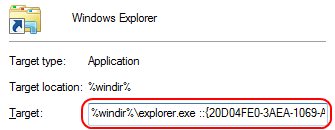
Click “OK” and you’re done !
6 Comments on “Make “Windows Explorer” taskbar icon open “My Computer” instead of “Libraries””
Leave a Reply
XHTML: You can use these tags: <a href="" title=""> <abbr title=""> <acronym title=""> <b> <blockquote cite=""> <cite> <code> <del datetime=""> <em> <i> <q cite=""> <s> <strike> <strong>
Thanks for the quick buck..! 🙂
Will that code work for all computers or is it a code we have to look for?
@Data warehouse,
In windows, “20D04FE0-3AEA-1069-A2D8-08002B30309D” is the CLSID of “My Computer” – it’s the same on every computer running Microsoft Windows.
So this code works on them all.
Hey, thanks for this useful tip that I was searching from long time. It makes easy to navigate on my computer now.
Thanks
This is the long way.
Easy way: explorer /n,
Make sure comma is added after the n